Keys on desktop mouse and keyboard
Seven binds are documented by the developer. F1 is the escape hatch: it opens the game's own key list, so nothing below has to be guessed.
| Key | Action | When to use it |
|---|---|---|
| Left click | Grab and throw | Moving a dummy or an object without a tool |
| Right click | Use the equipped item, as its prompt describes | After you select a tool or power |
| G | Slow motion | Watching a collision you want to see properly |
| Space | Pause | Freezing the scene to line something up |
| H | Heal everyone | Dummies are standing but too damaged to keep testing on |
| R | Reset the room | The scene is full of debris and you want a clean start |
| F1 | Show all keys | Checking a bind this page does not list |
H and R are the pair worth separating in your head, because both look like a reset. H heals everyone and leaves the scene standing; R resets the room and takes the scene with it.
How to read the bottom prompt
The bottom line tells you what the thing in your hand does. It carries three parts: the item name, its slot among the items you can cycle, and the action that item expects. Three recorded examples show how different those actions can be.
- The blade. It read
KATANAwith a slot count and the actionSLASH, plus the noteHOLD TO KEEP SLASHING. A single click and a held click are different actions for the same item. - The power. The demon hands entry carried its own extra condition at the end of the line, naming where the effect applies. Read the whole line before clicking.
- The character. Selecting a character swapped the line for character actions, with
SPAWNamong them. Nothing is placed until you press it.
If the bottom line still shows the previous item, the click selected nothing. That is the fastest way to tell a real selection from a hover.
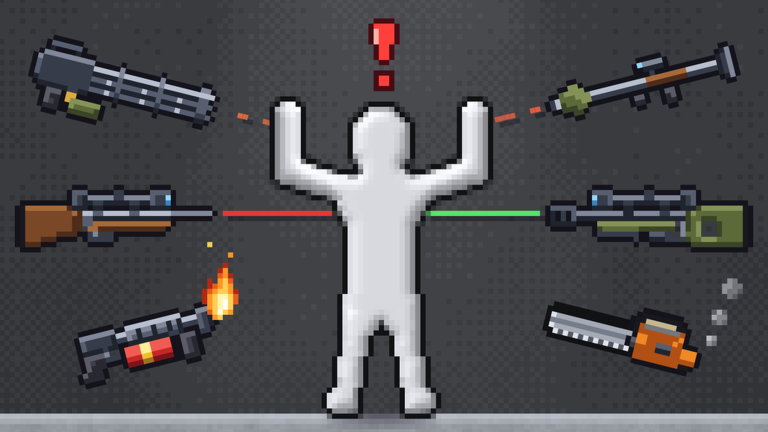 Figure: the dummy and the weapon types the official artwork shows. Source: the game's official Roblox page.
On-screen buttons
Only H and R are described by the developer. Everything in this table is read from what the buttons did on screen, so the scope is what was seen rather than an official statement.
| Control | Where it appears | Action seen |
|---|---|---|
| Pause | Top bar | Stops the scene |
1x speed |
Top bar | Time control, shown next to pause |
HEAL |
Top bar | Heals the dummies |
CLEAR |
Top bar | Clears the scene |
| Undo arrow | Top bar | Steps back the last edit |
| Menu button | Top bar | Opens the side panel |
SHOP |
Bottom-right corner | Opens the shop, with the coin count beside it |
SIZE − / + |
Bottom-right corner | Changes the size value next to it |
ITEMS / WORLD / OPTIONS |
Side panel | Switches between items, maps and settings |
| Search field | Above the item groups | Filters the item list by name |
Blood and gore
The game is not shy about damage. The official artwork shows a severed leg, and the magic list includes a blood-themed power. Whether the OPTIONS tab carries a setting for the blood effect was not recorded, so nothing here promises a toggle.
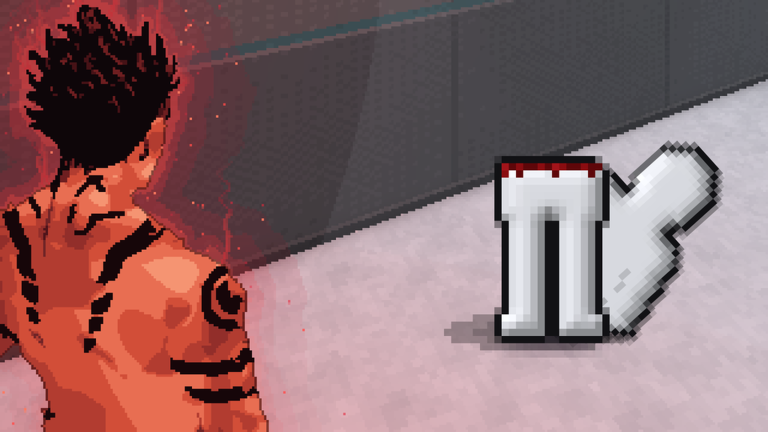 Figure: dismemberment in the official artwork. Source: the game's official Roblox page.
If a parent is checking the game first, treat the blood as present and the off switch as unconfirmed.
Figure: dismemberment in the official artwork. Source: the game's official Roblox page.
If a parent is checking the game first, treat the blood as present and the off switch as unconfirmed.
Touch controls
Every bind documented by the developer is a mouse and keyboard bind. The game may run on phones and tablets, but no touch layout was recorded, so none is described here. On a phone, the on-screen buttons in the table above are your only confirmed interface.